Account Profile

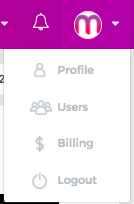
In the upper right corner of the screen you will find the user profile menu, where you will find all the information of your account. In this section you will be able to see the details of your profile, create users and check the billing and payment details.

  • Profile

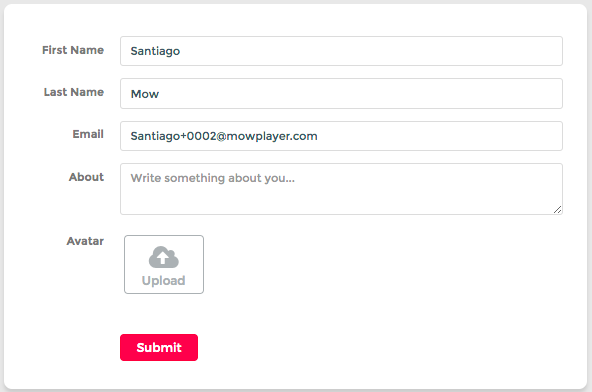
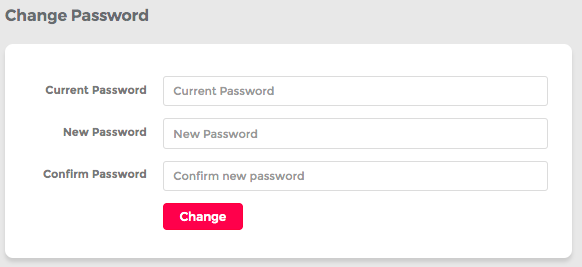
    In the Profile section you will be able to check and edit all your personal user information and modify your personal data and access password.

  • Users

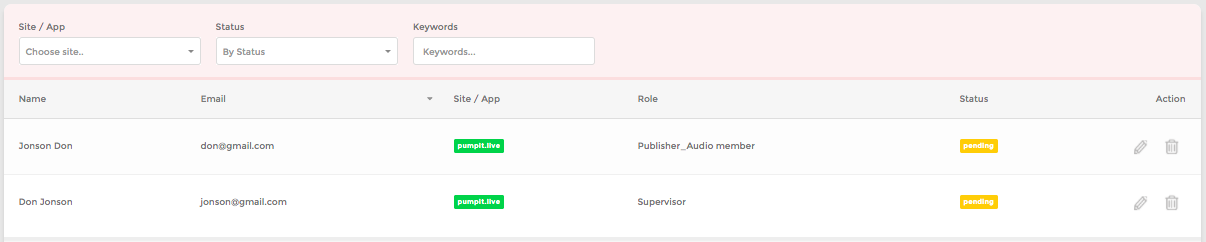
    You can manage and create other users associated with your sites who will have access to the account and can also add, edit and work together as a team to create a quality video ecosystem.

    There are currently 2 types of profiles.

    Editor :The editor profile only has access to the management of video/audio activity, can upload videos, create video articles and playlists and take codes from the platform, but does not have access to any report related t.

    Supervisor Profile :The supervisor profile has full access to both, the Video activity and the Revenue and ad modules related to the monetization of the site.

    Users will be listed in the main section, will be able quickly check under what role and to which site they have access.

    Keep in mind : the only profile with the ability to create other users and edit the main information of the entity that represents the domains is the administrator profile. There is only 1 administrator profile per account, if you want to modify it you need to contact your Account Manager.

  • How to create an User

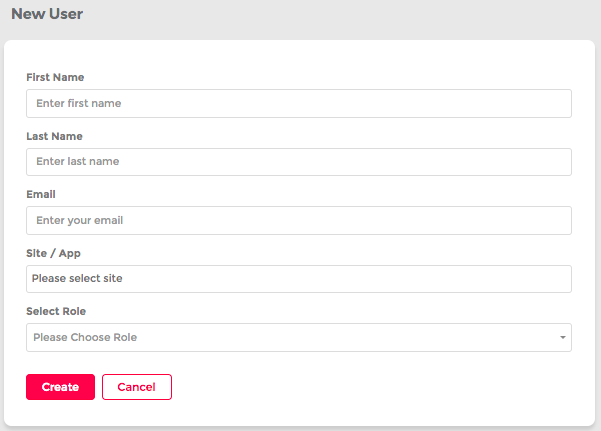
    To create a new user, press the + New User button located in the upper right corner of the screen in the Users section.

    Enter new user, choose the property (domain or App) of your account that will have access and what type of role (Editor - Supervisor).


    Once all data is full fill press the Create button to generate the new user.

    All users will receive a notification via email that they have been registered in Mow.

  • Billing

    In the Billing area you will be able to access to all the information related to the company or individual person that represents and manage the properties of your account as well as the payments to receive from our Marketplace monetization.

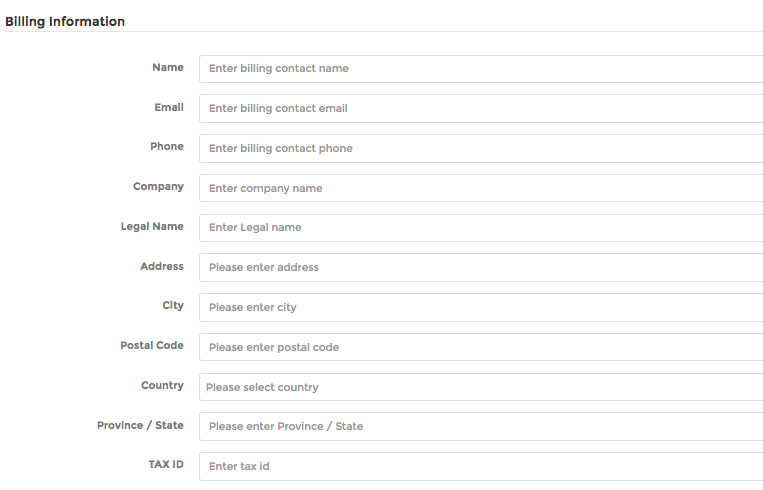
    • Billing Information.

      Complete here with all the data related to your company.

      If the payment information area is disabled, it is likely that you have not yet reached the minimum amount required.

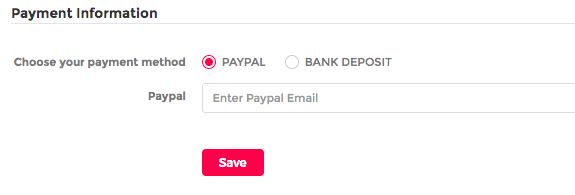
      Once you pass the threshold of the minimum billing you can choose the payment method, currently our enabled methods are Paypal and Bank wiretransfer.

    • Payment Informations

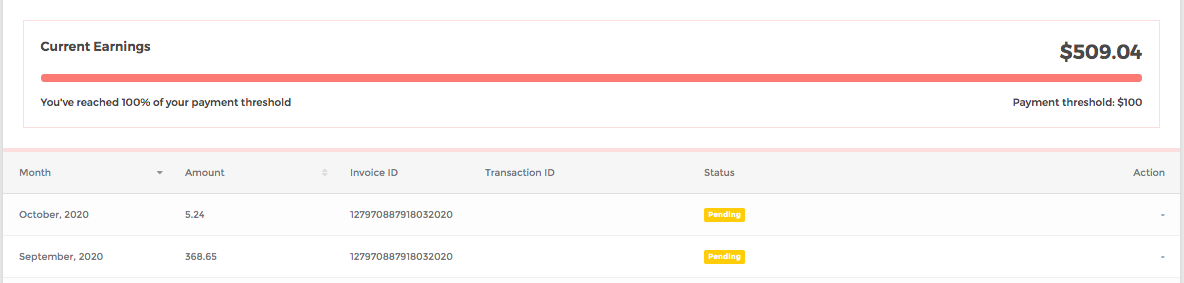
      If your account is verified and the Mow Marketplace is enabled, here you can find the details of the payments what is the amount for the current period.

      Keep in mind that the minimum amount to be reached in order to start receiving payments is 100 usd and payments are made in a net 30 base once the Invoicing cycle is closed.

      You can download the proof of the activity for the month and the payment status. If you have any questions regarding the billing details, you can reach your Account Manager.